First 5 minutes
Start here. You don't need to learn the whole booth before you help. If you were asked to track, the six short pages of First 5 minutes are all you need. Use Next at the bottom of each page, or jump around with the index.
Get in
- Open the invite link the operator sent you. A crew link opens the booth for that race.
- Or, if you have a Discord role on the restream site, sign in with Discord, open Broadcast, and press Join booth under Your booths. It does the same thing.
- Use the newest link. An old one tells you it has expired; ask for a new one. Don't share your link, it's yours.
- Use a computer if you can. A laptop is fine. A phone also works for tracking (see On a phone).
First 5 minutes
Check your mic before anything else
Your browser will ask to use your microphone. Allow it. Then look at the bottom right of the booth:
- Booth only: the crew hears you, the stream doesn't.
- On air: the stream hears you (while the Race or Results scene is showing).
- The mic button next to them mutes you. Nobody hears you.
If you're only tracking, pick Booth only or mute. Your commentators will ask if they want you on air; a reminder pops up above your mic when they do.
Your microphone, noise filter and Test my mic are in the Comms panel.
First 5 minutes
What you're looking at
The big picture in the middle is the stream itself, with the tracker drawn on it. You click right on the picture to track. Every click is shared: the other crew see it at once, and so do viewers while the Race scene is on.
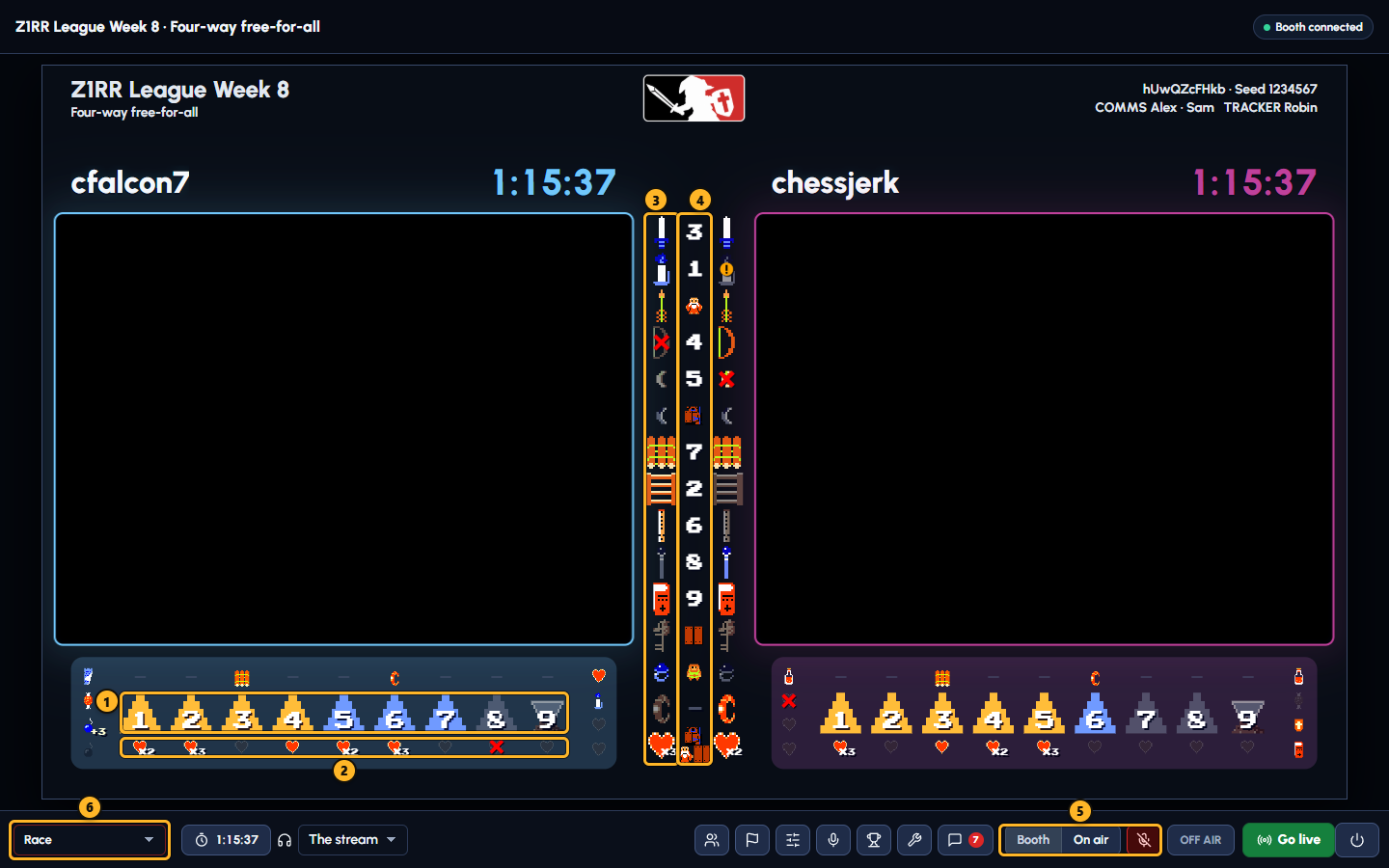
First 5 minutes
The four clicks that cover most tracking
- 1 Triforce: click to step through not found → level found (blue) → triforce found (gold) → not found. On level 9, gold means Gannon is killed.
- 2 Hearts under each triforce: click to count the heart containers in that level, 1, 2, 3, then back to none.
- 3 Items: click to give the racer the item. Swords, candles, arrows, rings and the book open a small menu so you can pick which one.
- 4 Item locations, the column in the middle: click it and pick where that item is (a level number, or a spot like Armos or the Old Man). Locations are shared by every racer, because it's the same seed.
The numbers match the picture on What you're looking at. For every click and Shift+click, see Tracker basics.
Clicking a racer's video or name opens that racer's panel. Clicking a time or the race clock opens Results. Clicking the race logo or title opens the Race panel. That's normal. Close the panel with × or Escape and carry on.
First 5 minutes
Fixing a mistake
There is no undo button. Instead:
- Triforces, hearts and simple items: keep clicking. They go round in a loop and come back to empty.
- Items with a menu: open it again and pick the right one, or the dimmed one to clear it.
- Locations: open the menu again and pick the right place, or the dash at the end to clear it.
- An X you didn't mean: Shift+click the same spot again (on an item, twice more: X, then !, then clear).
Not sure what something should be? Ask before guessing; see who to ask.
First 5 minutes
What to leave alone, and who to ask
As a tracker you can ignore:
- Scene, the red-outlined pulldown at the bottom left. It changes what the stream shows.
- Go live and the power button (Shut down booth).
- Everything in Tools, especially the red Clear Tracker.
If something looks wrong, say so on comms, or post in chat with Booth picked, which only the crew can see. The operator who invited you is the person to ask; your commentators can help too.
That's it. The rest of this guide is reference: start with Tracker basics when you want more.
Tracker
Tracker basics
The rules are the same in every layout:
- Click moves a thing to its next state, in a loop.
- Shift+click marks it instead, usually with an X. On a phone, hold does what Shift+click does.
- Empty slots are dimmed in the booth so you can still click them. Viewers don't see empty slots, only what a racer has (and anything marked with an X).
- Some things are shared by every racer because they describe the seed: item locations, overworld blocks and the bomb upgrade count.
Triforce colors
| Color | Levels 1 to 8 | Level 9 |
|---|---|---|
| Dim | Not found | Not found |
| Blue | Level found (the racer found or entered it) | Level found |
| Gold | Triforce found (they have the piece) | Gannon killed |
Pick your layout: two racers, three or four racers, or a phone.
Tracker
Two racers
Each racer has a nameplate above their video and a strip below it. The column between the videos holds both racers' items, with the item locations in the middle.
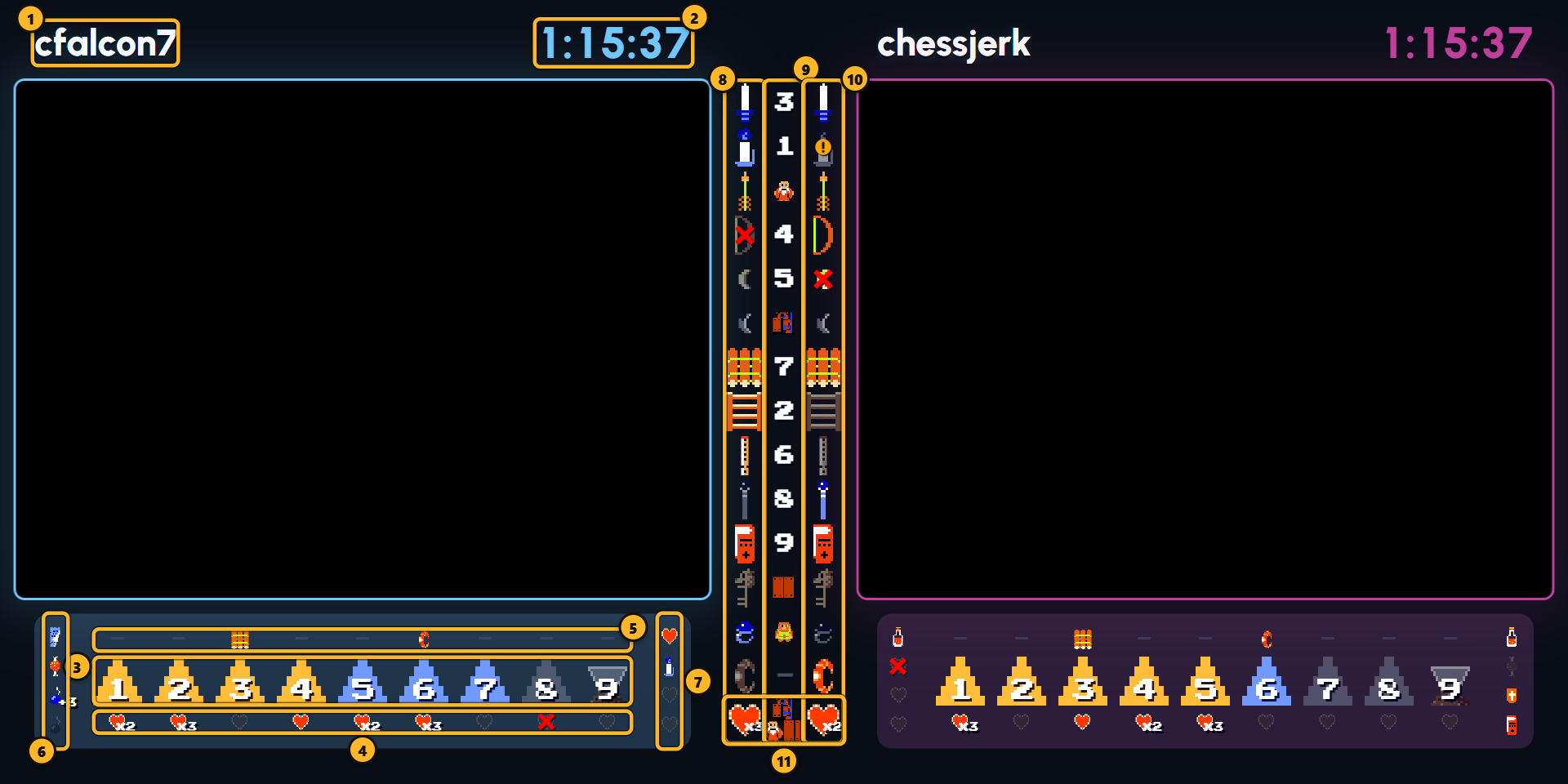
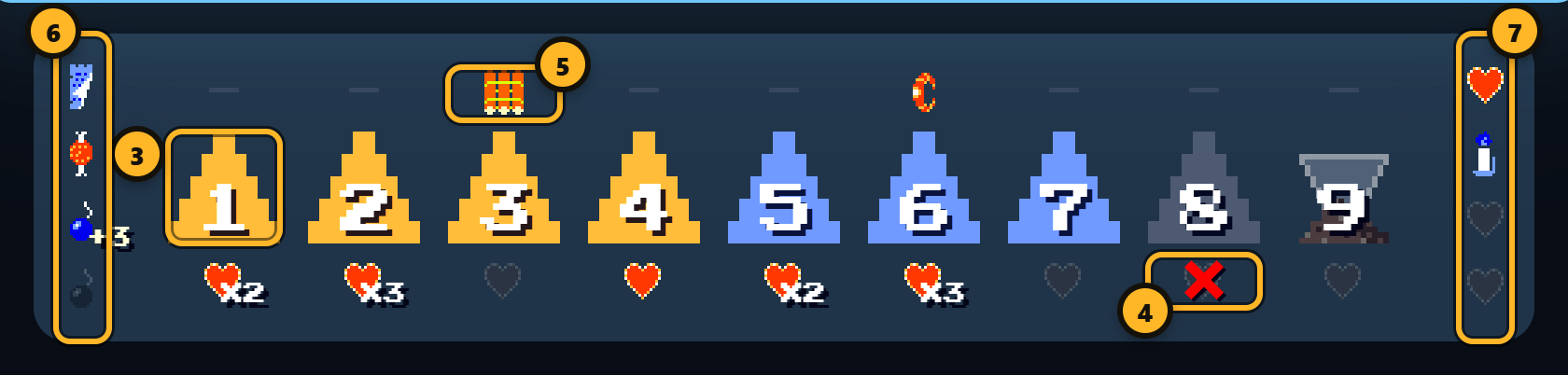
+3 by the bomb is the bomb upgrade count.| # | What | Click | Shift+click |
|---|---|---|---|
| 1 | Racer name | Opens that racer's panel (not tracking) | same as click |
| 2 | Racer time | Opens Results (not tracking) | same as click |
| 3 | Triforce, levels 1 to 9 | Not found → level found (blue) → triforce found (gold) → not found. On level 9, gold means Gannon is killed. | nothing extra |
| 4 | Heart containers in that level | None → 1 → 2 → 3 → none (2 and 3 show as ×2, ×3) | On an empty heart only: X on / X off (shows on stream) |
| 5 | Overworld block, above each triforce | None → power bracelet → raft → recorder → ladder → none. Shared: it shows on both racers. | nothing extra |
| 6 | Extras, the column on the outer edge (four slots, top to bottom) | Slot 1: letter → blue potion → red potion → empty. Slot 2: bait on / off. Slots 3 and 4: bomb upgrade → shield → book → empty. | On an empty slot: X on / off. On a bomb upgrade: steps the seed's bomb upgrade count +2, +3 … +8, then back to plain. Shared by every racer. |
| 7 | Take Any caves, the column by the item rail (four slots) | Empty → heart → blue candle → red potion → empty | On an empty slot: X on / off |
| 8 | Racer 1's items (left of the locations) | Simple items (bow, boomerangs, raft, ladder, recorder, rod, key, bracelet): have it / don't. Sword, candle, arrows, ring, book/shield: opens a menu to pick which one. | Marks the item: X, then !, then clear. The boomerangs get a fire mark instead of an X. |
| 9 | Item location, the middle column | Opens the location menu. One location per item, shared by both racers. | Click it first; Shift works inside the menu |
| 10 | Racer 2's items (right of the locations) | Same as 8 | Same as 8 |
| 11 | Heart container row, bottom of the rail | Each racer's heart container count: none → 1 → 2 → 3 → none (no menu; 2 and 3 show ×2, ×3). The middle opens the location menu. | On a racer's heart: X only when they have none. In the location menu: pick several places. |
Hover an item in the middle rail to see when it was picked up, in race time. Hover a location to compare when each racer got that item. If a best-of series is set, small hearts by each name count series wins; click one to fill or empty it.
Tracker
The location and item menus
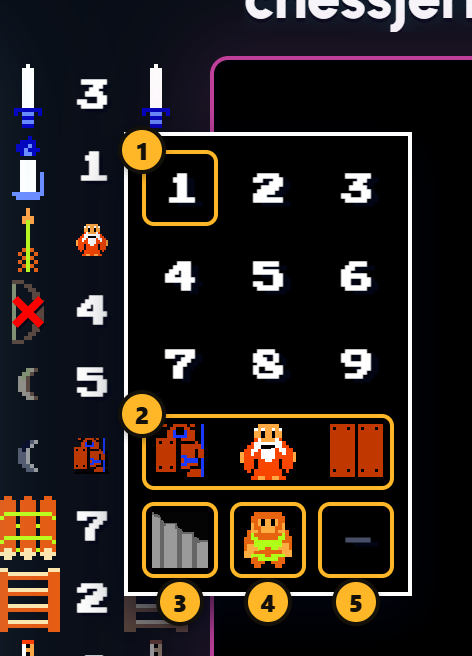
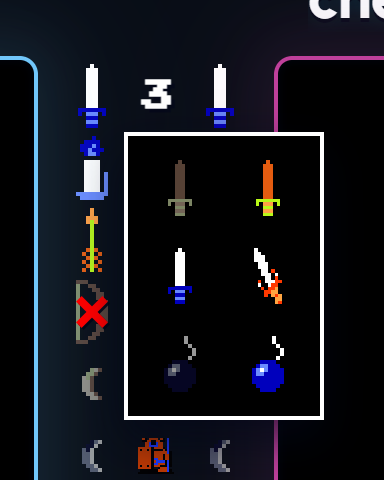
| In the location menu | Click | Shift+click |
|---|---|---|
| A level number | Sets the location and closes | Sets the location and marks it as a basement (the number gets underlined), then closes |
| Staircase | Arms "basement" and keeps the menu open. Now click a number: you get that level, marked as a basement. (Shift isn't needed for this one.) | |
| Armos, Old Man, Coast | Sets that place and closes | On the heart container row only: adds or removes that place, and the menu stays open, so one row can show several places |
| Merchant | Sets it and closes | same as click |
| The dash (last) | Clears the location | same as click |
To close a menu without changing anything, click anywhere outside it.
Tracker
Three and four racers
Each racer gets a card: the video plus a panel with their name, place and time, triforces with hearts, and a grid of items. Item locations sit in a center rail between the cards (four racers) or a row along the bottom (three racers). The clicks are the same as for two racers.
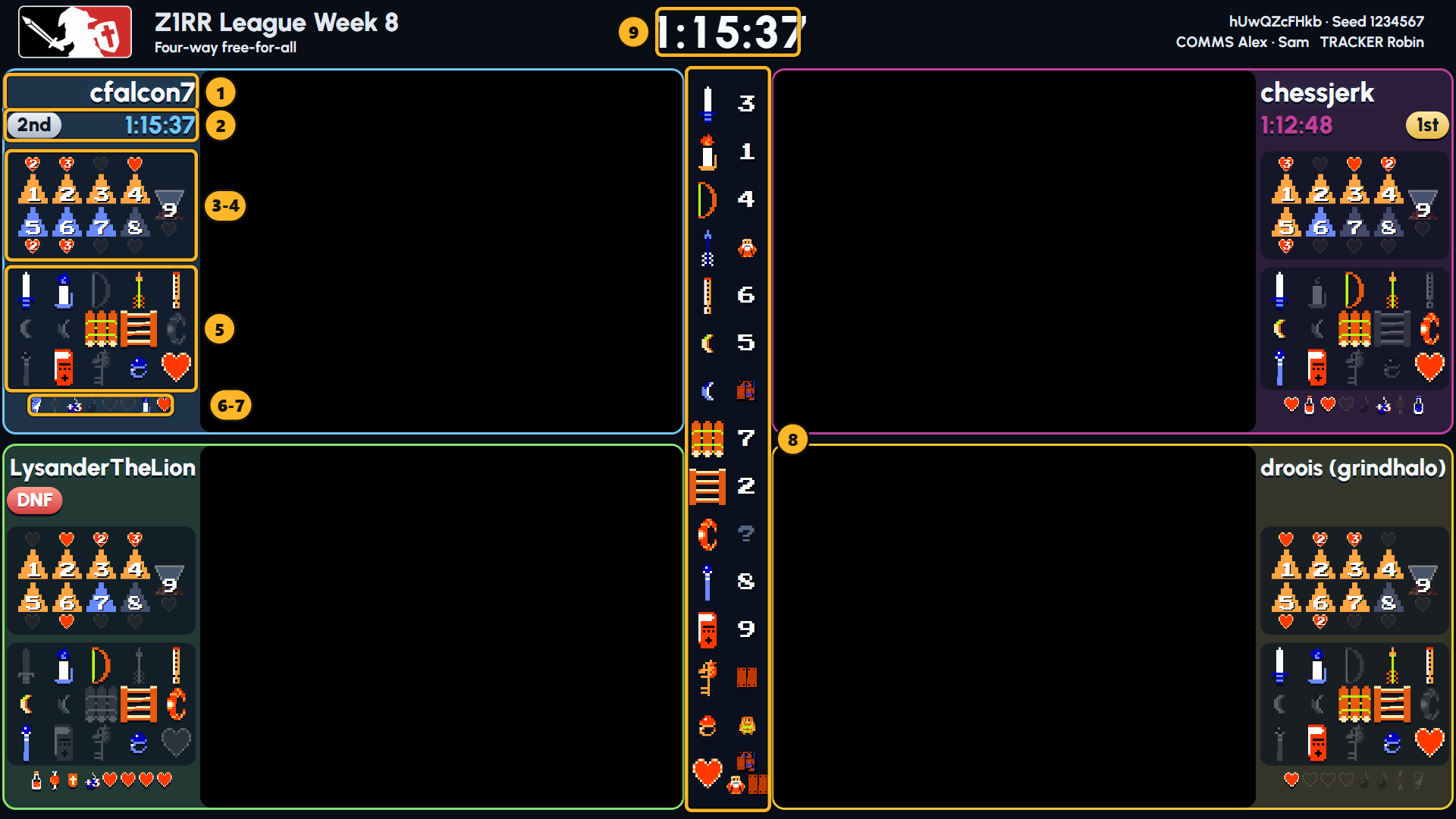
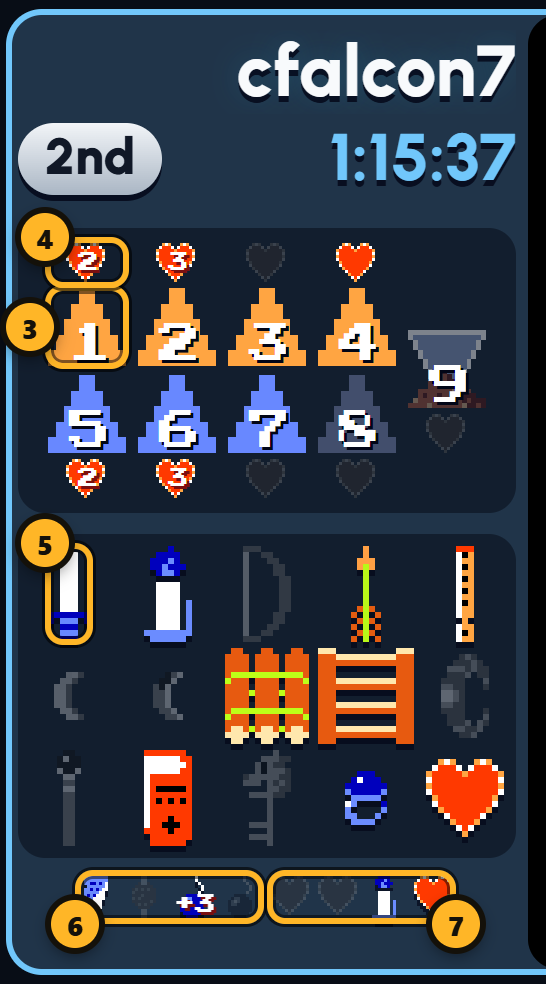
| # | What | Click / Shift+click |
|---|---|---|
| 1 | Name | Opens that racer's panel |
| 2 | Place and time | Opens Results. Filled in once a final is accepted. |
| 3 | Triforce | Not found → level found (blue) → triforce found (gold) → not found. On level 9, gold means Gannon is killed. |
| 4 | Heart | None → 1 → 2 → 3 → none. Shift: X on an empty heart. |
| 5 | Item grid, 15 items | Toggle or menu, as for two racers; Shift marks X, then !, then clear |
| 6 | Extras (four racers only), from the outer edge | Same cycles as the two-racer extras; Shift X on empty; Shift on a bomb upgrade steps the shared count |
| 7 | Take Any caves (four racers only), from the rail side | Same as two racers |
| 8 | Center rail: each item and where it is | Click the place under an item to open the location menu. A ? means not set yet; viewers see a blank. The item pictures in the rail aren't clickable. |
| 9 | Race clock | Opens Results |
Three racers: no extras or Take Any row, and the locations run along the bottom. Four racers have no overworld blocks. In these layouts you can also Tab to a tracker spot and press Enter (with Shift for the mark).
Tracker
On a phone
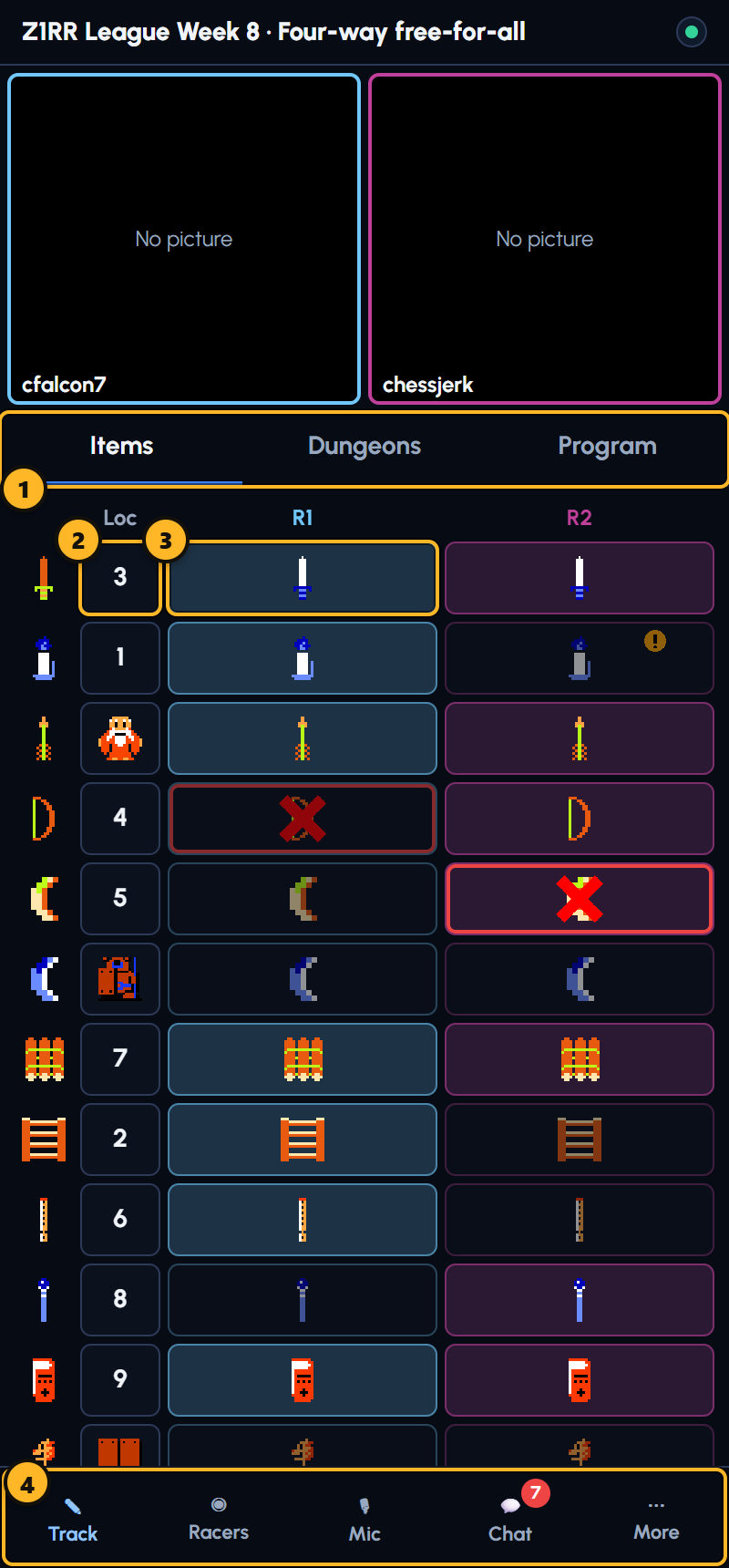
Hold a phone upright and the booth turns into a tracker made for thumbs:
- 1 Items, Dungeons (triforces and hearts) and Program (the stream picture, with Scene, timer, mic and Go live under it).
- 2 The Loc column opens a location sheet. Its modes stand in for Shift: Floor is a normal pick, Basement makes the next number a basement, and on the heart container row Several lets you tap each place, then Done.
- 3 Tap an item to cycle it or open its menu. Hold to mark it (X, then !). On Dungeons, tap a triforce to go not found → level found → triforce found (Gannon killed on 9), and hold an empty heart to X it.
- 4 The bottom bar: Track, Racers, Mic, Chat and More (Results, Race & stream, Mix, Tools).
The phone tracker doesn't have Take Any caves, extras or overworld blocks. Use a computer for those.
Booth tour
The whole booth
Here is the whole booth on a big screen. On a laptop the side panels open as pop-up dialogs instead, and chat slides in from the right. The parts are the same.
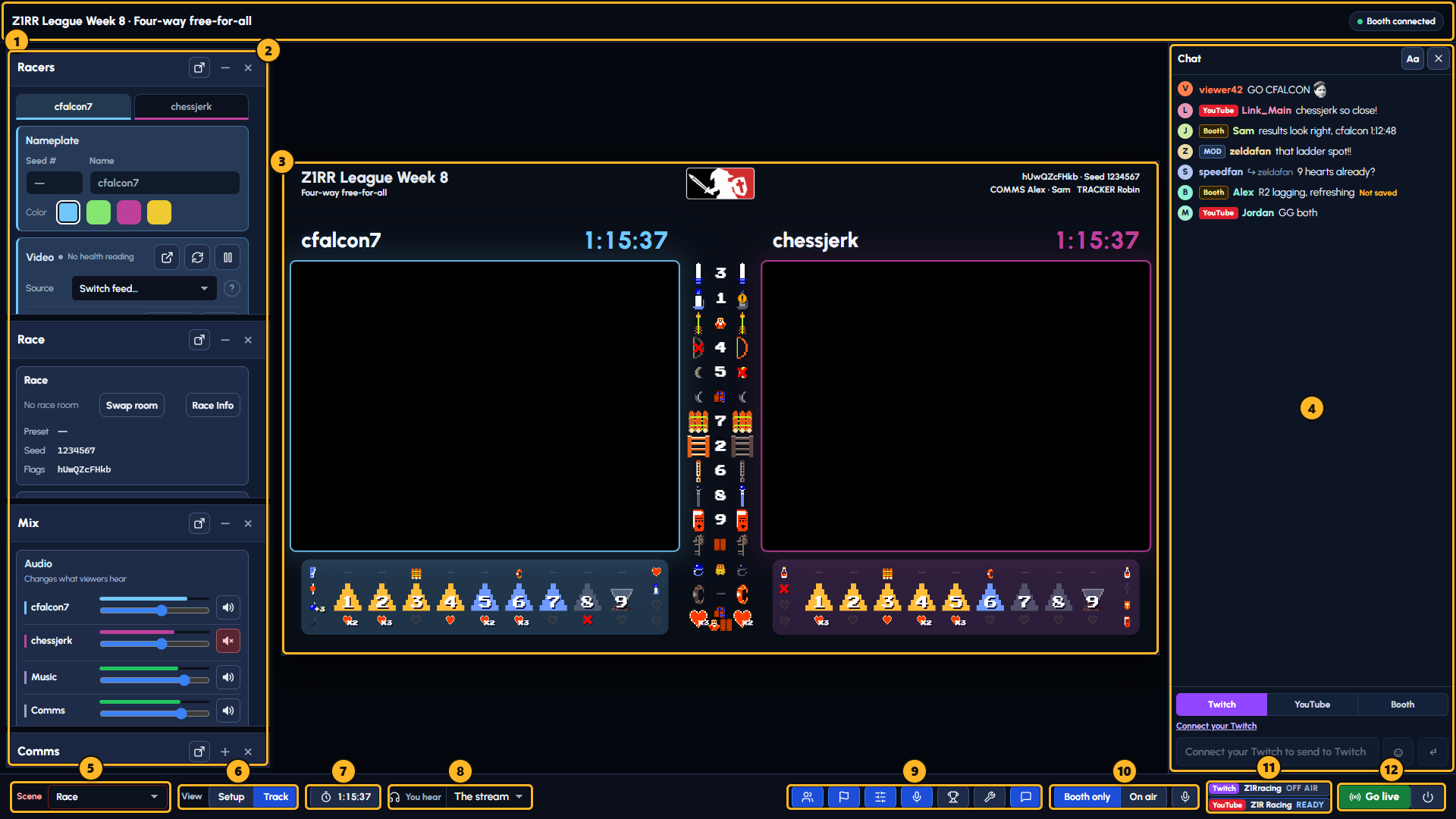
1 Header
The race title on the left; status pills on the right. Booth connected is good; Booth reconnecting means your connection dropped and the booth is catching up. Admins also see a pill like R2 HLS when a racer's video needs attention.
2 Panels and docking
On a window 1600 px or wider, a panel can dock in the left column or pop out as a dialog; the button in its title bar switches. – shrinks a docked panel to its title, × closes it, and its footer button brings it back. Narrower windows always use dialogs; close one with ×, Escape or a click on the dimmed area.
3 The broadcast picture
The program: what viewers see when the Race scene is on, at its real layout. This is where you track. While the encoder is still starting, it shows the startup steps instead.
Booth tour
The footer


9 Panel buttons
They're icons on most screens. Left to right:
- Racers
- Race
- Mix
- Comms
- Info
- Results
- Tools
- Chat
A button looks pressed while its panel is open. The Chat button shows a count of unread messages while chat is closed.
5 Scene On air for everyone
Picks what the stream shows: Title, Race (preview) (the crew sees the race, the stream stays on Title), Race, or Results. A choice that isn't ready stays in the list, grayed, with the reason. If your role can't change it, it's grayed out.
6 View: Setup or Track
Two arrangements of your docked panels; each remembers which panels you closed or shrank. It never changes the stream, anyone's mic or the mix. Only shown where panels can dock.
8 You hear
What plays in your headphones: The stream, or one racer's game audio. Changes only your listening; the stream doesn't change.
Booth tour
Your mic and going live
10 Your mic
Booth only (crew hears you), On air (the stream hears you), and the mic button to mute. If On air turns amber, the crew hears you now and the stream will once Race or Results is on. Hover it for a sentence saying exactly who hears you. Device, noise filter and level are in the Comms panel.
11 Destination badges
What Twitch and YouTube themselves report: OFF AIR, ● LIVE 1:02:11, READY, ⚠ NOT RECEIVING, or UNKNOWN when the last check is too old. On a laptop they fold into one pill you click to open. These, not the Go live button, tell you whether the show is really live.
12 Go live, Stop live, Shut down booth Stream-wide
Start or stop the stream, and end the booth (the power button). Each asks first, naming exactly what will happen; Cancel or Escape does nothing. Commentators see Go live grayed out, no Shut down button, and can use Stop live only while the show is live.

Booth tour
Race timer
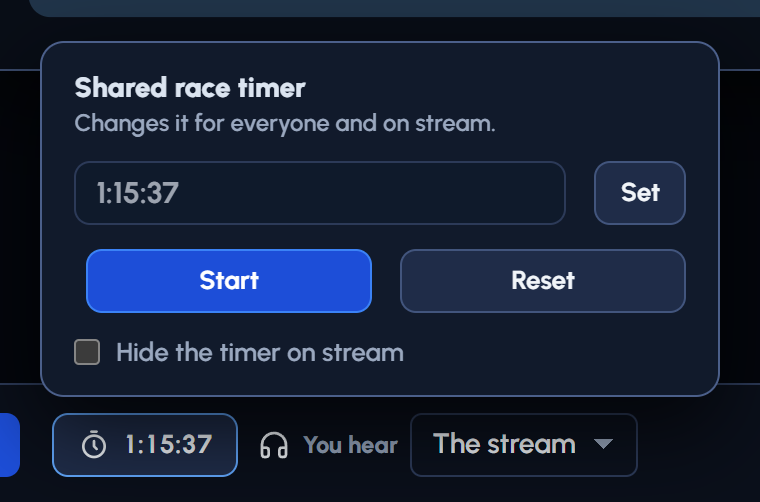
Click the timer in the footer to set a time (1:05:00, 58:30 or plain seconds), Start or Pause, Reset, or Hide the timer on stream.
"Shared" means everyone, and the stream, sees your change. A struck-through timer is hidden on stream. If your role can't edit the tracker, the timer is read-only.
Booth tour
Chat
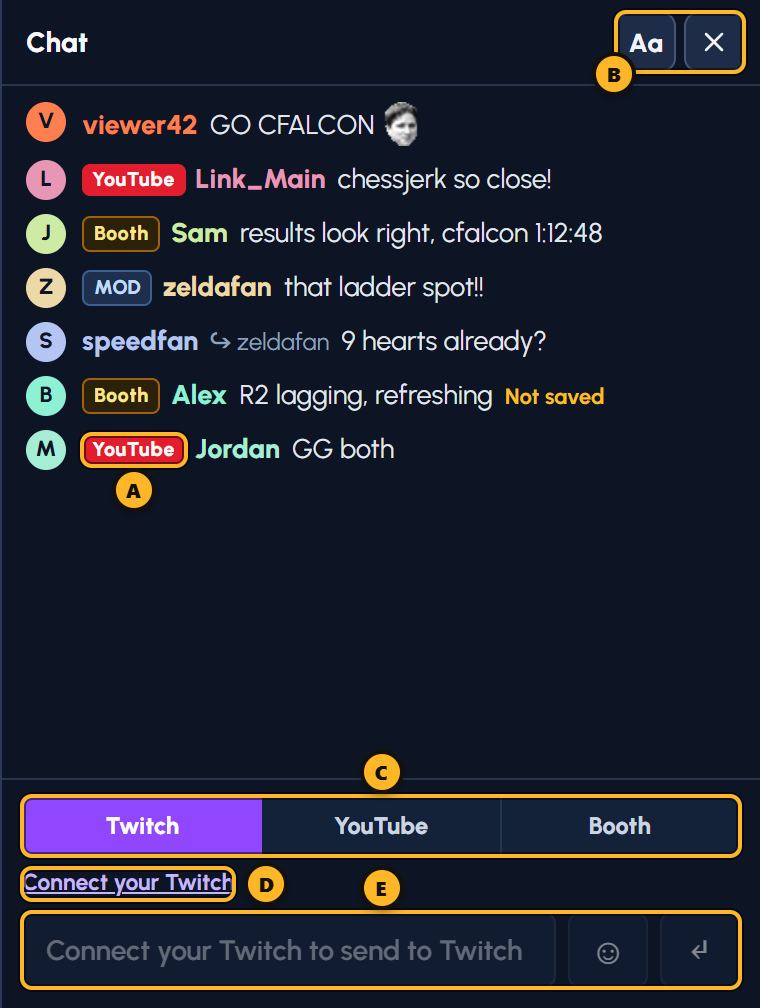
- One list for Twitch, YouTube and Booth. A YouTube and Booth lines have a chip; lines without one are Twitch.
- C Your message goes to exactly one place: the tab you pick. Reply (hover a message) answers in that message's place.
- Booth is private to this race's crew and posts under your Discord name. Use it for "R2's feed is lagging" or "is that a 3 or a 5?". A Booth line says Not saved until it's stored.
- Twitch posts as you. D Connect your Twitch once to allow it.
- YouTube posts as the Z1R Racing channel (commentators, operators and admins).
- B Aa changes the chat text size, just for you. × closes chat; the footer Chat button brings it back. Drag the left edge of the column to resize it.
- Type
:and two letters for emote suggestions, or use ☺.
Booth tour
Comms panel
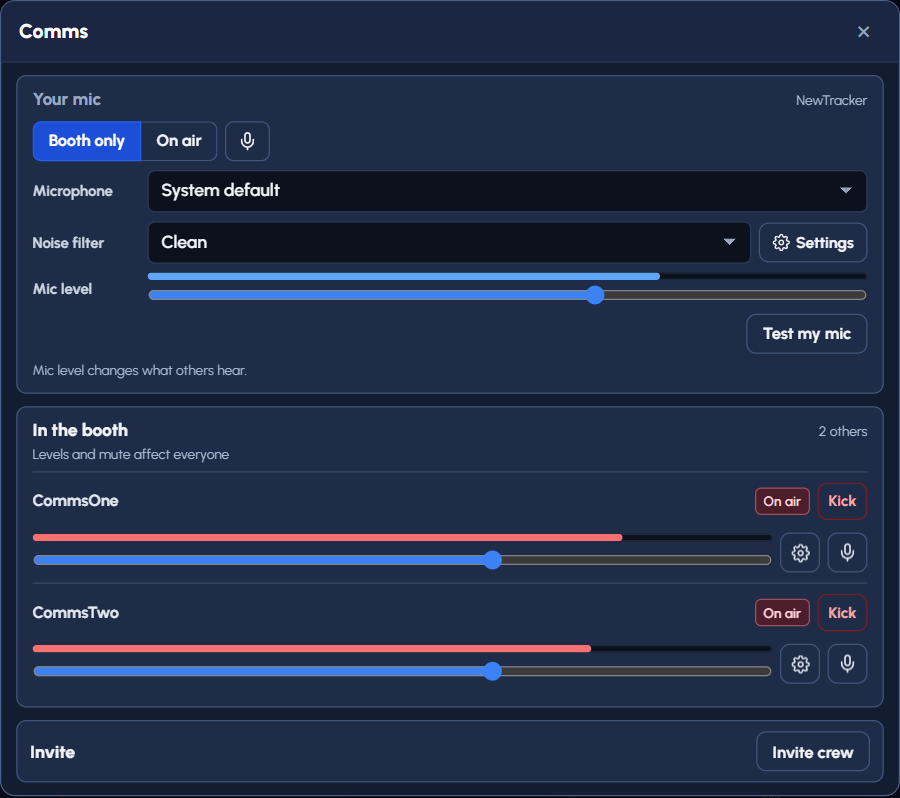
Your mic at the top: who hears you, which Microphone, the Noise filter (Clean is a good start), Mic level (it changes what others hear) and Test my mic. Your name is in its corner; you're not in the list below.
In the booth lists everyone else. Their levels and mute buttons change things for everyone, so leave them unless you're running the mix. Ask on air only asks; it never switches anyone's mic.
Booth tour
Info panel: lower thirds
Open Info (ⓘ) in the footer, then Lower thirds. On a wide screen, Info docks in the left column under Comms. These are the promo, matchup and flags panels that slide over the broadcast picture. They appear on Twitch and the YouTube simulcast while you're live.
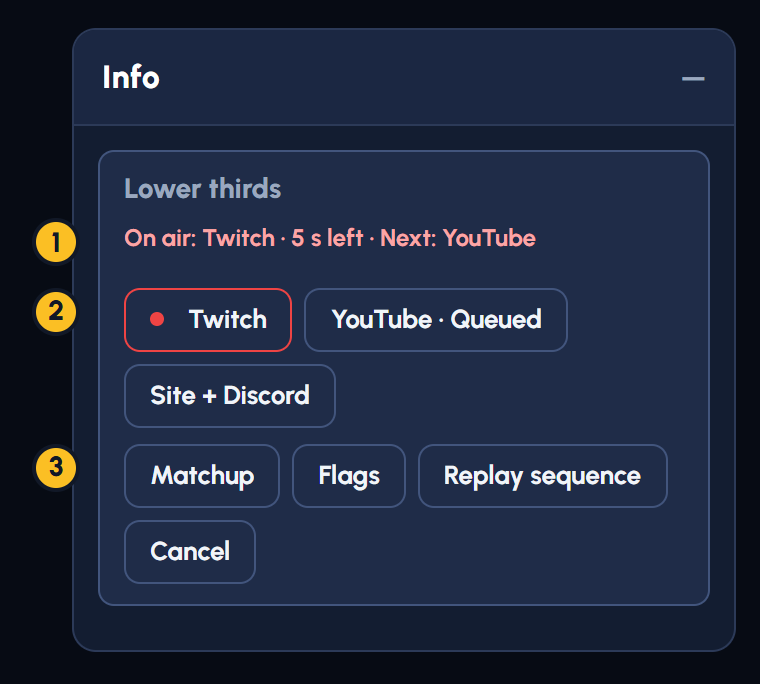
- Check what's on air.
The status line shows the time left and what comes next. - Choose a promo.
The red dot marks the active panel. “Queued” means it'll show after that panel clears. - Show race info or stop.
Matchup is for 1v1; Replay sequence is available in Results. Cancel clears the panel and queue.
The automatic sequence
Switching the program to Race (On Air) starts the sequence: by default, a 20-second wait for your introduction, then Twitch, YouTube and Site + Discord, each for 8 seconds with 8-second gaps. That's one minute from the scene switch to the last panel clearing.
- 0–20 sYour introNo panel · 20 s
- 20–28 sTwitchOn screen · 8 s
- 28–36 sGapNo panel · 8 s
- 36–44 sYouTubeOn screen · 8 s
- 44–52 sGapNo panel · 8 s
- 52–60 sSite + DiscordOn screen · 8 s
Race preview doesn't start it, and selecting Race again while it's already on air doesn't repeat it. Rolling into the next race starts a fresh sequence if Race stays on air. Changing scenes stops the sequence.
Showing a panel yourself
- Twitch, YouTube or Site + Discord: show that promo panel. The default hold is 8 seconds.
- Matchup: show the two racers' shared race history. This button is for 1v1 races; if they haven't raced together, the panel says so.
- Flags: show this race's flags. A 1v1 Race scene gets a card with up to three pages, 8 seconds per page by default. Three- and four-racer layouts and Results use a shorter band. A race without a flag string shows “This race has no flags yet.”
- Replay sequence: run the promo sequence again during Results.
- Cancel: clear the panel and anything waiting to show.
The status line tells you what's showing, its time left and what's next. The active button has a red dot. One request can wait its turn, marked Queued; another request won't cut the current panel short.
!matchup and !flags from a booth account in chat also show their panel the first time viewers see it that race. Later commands answer in chat only; use the button to show the panel again. Testing before Go live doesn't use up that first showing.
Panels are for Race (On Air) and Results, not Title or crew preview. The buttons need the same permission as changing scenes. Z1Rracing5 and TriforceTriplePlay skip the automatic sequence and the Twitch panel.
Council can change the timings in Lower-third settings.
Booth tour
Lower-third settings for Council
Open Council → Tools → Lower thirds and sign in with Discord. These settings are shared across production booths; they aren't a preference for just the race you're working on. Staging keeps its own settings for rehearsals.
- Turn the automatic sequence on or off, and choose the wait before its first panel.
- Set the Twitch, YouTube and Site + Discord holds, the gap between them, and the hold for panels shown with a booth button.
- Set the flags page duration and the Flags corner circle to Auto, Always or Never.
Times are whole seconds. Waits and gaps can be 0–300; panel holds 1–60; flags pages 3–30. The form shows the total automatic sequence length before you press Save.
When changes reach the booth
- Save in CouncilShared production settings
- Booth refreshesOn wake, every 5 min, or at sequence start
- Next sequence uses themA running sequence keeps its timings
An awake control plane checks for changes every five minutes and when a sequence starts. Allow up to about five minutes for a saved change to reach it. A sequence already running keeps its original timings; later sequences use the refreshed settings. A sleeping control plane reads the saved settings when it wakes, so Council can make changes before a show.
Not saved yet means the booth is using its built-in defaults, including the 20-second opening wait and 8-second holds, gaps and flags pages. It doesn't mean lower thirds are disabled.
If someone else saves while your form is open, use Reload saved settings, check their changes, and reapply yours. If a save can't be confirmed, your form stays in place; reload to check what was saved. A temporary connection problem leaves booths using their last good settings, or the defaults if they haven't read any yet.
Booth tour
Racers panel
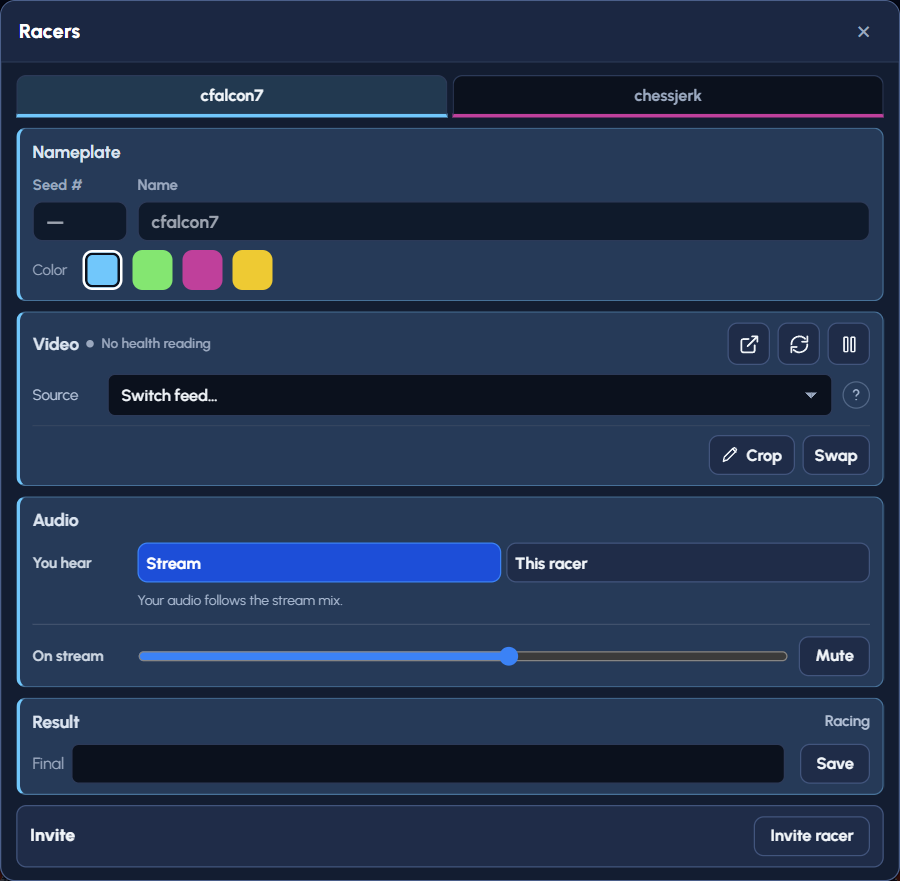
One tab per racer: Nameplate (seed #, name, color), Video (open their stream, Refresh a stuck feed, pause, switch to their Twitch VOD if the live feed fails, Crop, Swap), Audio (listen to just this racer, or change their volume on stream), Result, and Invite racer.
If one racer's video freezes, give it a moment, then use that racer's Refresh once.
Booth tour
Results panel
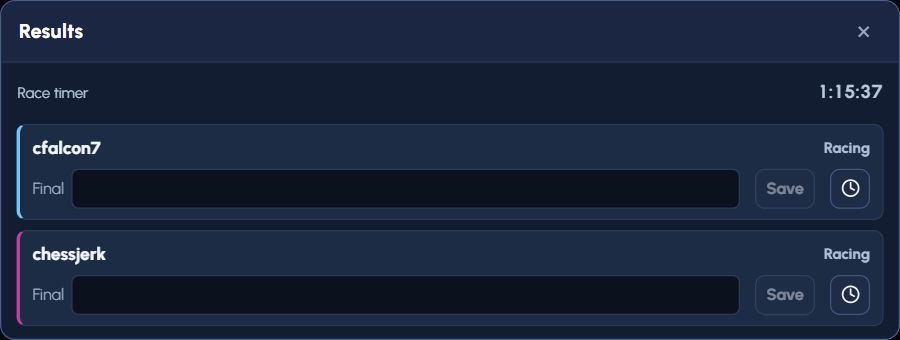
Every racer's final in one place. Type a time like 1:05:00 or 58:30, or DNF, and press Save. The clock button saves the race timer as that racer's final.
When racetime.gg reports a result, it shows under the racer with Use result, and a small card also pops up at the bottom right of your view. Clear a final and Save to unlock it.
Booth tour
Race panel
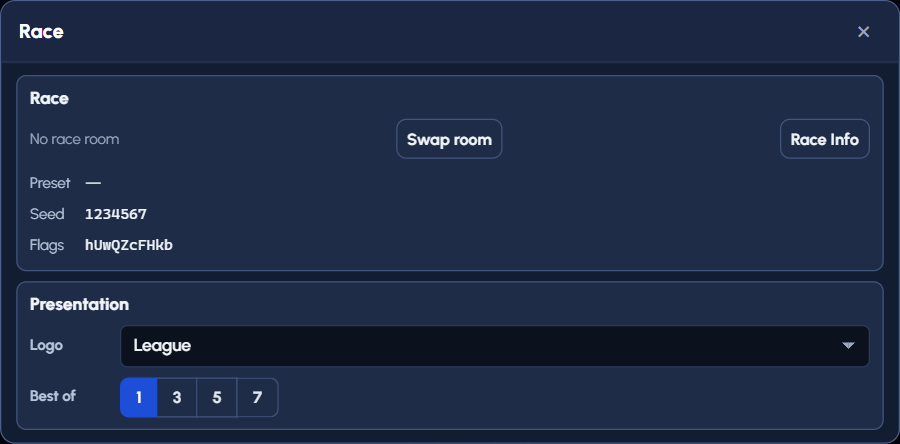
The race itself: a Ready to go live check at the top, the on-screen title, the race room (Swap room, Race Info for the flags), Logo and Best of, the Crew names shown on stream (Comms 1, Comms 2, Tracker), and the Twitch title and category (sent only by Apply to Twitch).
Booth tour
Mix panel
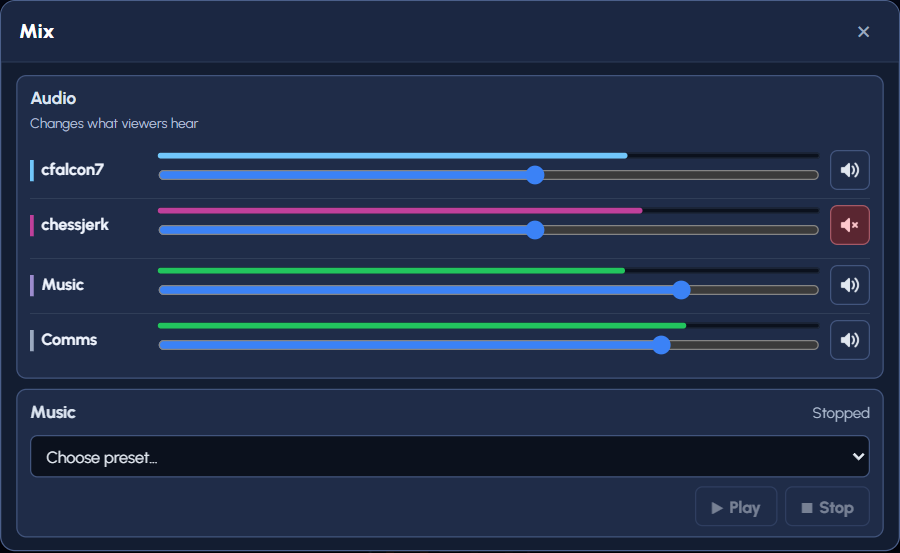
What viewers hear: a volume and mute for each racer, Music and Comms, plus the music player. Every change here is heard by everyone. For your own headphones use You hear on the footer instead.
Booth tour
Tools panel
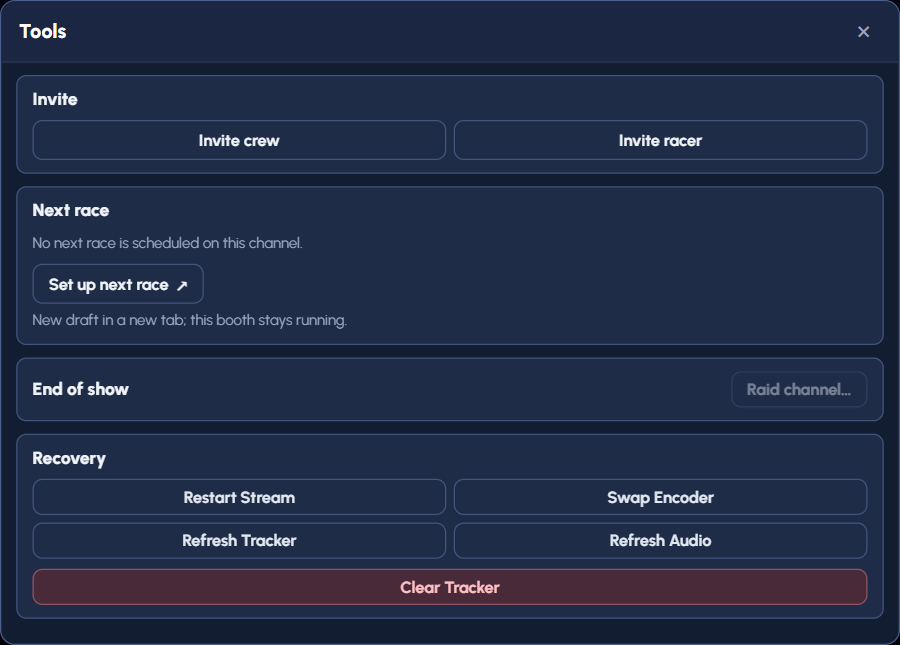
Invite crew or racers, roll into the Next race, Raid another channel at the end of the show, and Recovery: Restart Stream, Swap Encoder, Refresh Tracker, Refresh Audio and Clear Tracker.
Recovery actions can interrupt the stream. They all ask first, but if you're not the operator, leave them alone.
Where is it?
Tracking questions
What do blue and gold triforces mean?
Blue: the racer found that level. Gold: they have its triforce piece. On level 9, gold means Gannon is killed. See Tracker basics.
How do I put an X on an empty heart?
Shift+click it. It only works on a heart with no containers; click normally to count hearts. The X shows on stream.
How do I mark an item with an X or a !?
Shift+click the item. Once gives an X, twice gives !, a third time clears it. The boomerangs get a fire mark instead of an X. On a phone, hold the item.
How do I mark a basement?
Open the location menu and Shift+click the level number. Or click Staircase first, then the number. The number shows underlined.
A heart container is in more than one place. How do I show that?
On the heart container row, open the location menu and Shift+click Armos, Old Man and/or Coast. The menu stays open while you pick; click outside to close it.
How do I show +2 (or more) on the bomb upgrade?
Set a racer's extras slot to the bomb, then Shift+click the bomb. Each Shift+click adds one, up to +8, then it goes back to plain. The count is shared by every racer, since it's a seed setting.
Why are some slots faded?
Faded means empty. The booth shows them so you can click them; viewers don't see empty slots.
What's the ? in the four-racer center rail?
That item's location isn't set yet. Viewers see a blank there. Click it to set the location.
Where's undo?
There isn't one. Click again to cycle back, or reopen the menu and pick the right value (the dimmed picture or the dash clears). See Fixing a mistake.
I clicked the tracker and a panel opened instead.
Names and videos open the racer's panel; times and the race clock open Results; the logo and title open Race. Close it with × or Escape.
Can I track on my phone?
Yes, held upright. See On a phone. Take Any caves, extras and overworld blocks need a computer.
Where is it?
Mic and audio questions
Where do I pick my microphone or noise filter?
Open Comms (the mic icon in the footer). It's at the top, under Your mic, with Test my mic. See Comms panel.
Am I on stream right now?
Look at your mic in the footer. On air selected and not muted means the stream hears you while the Race or Results scene is up. Amber means the crew hears you now and the stream will once the scene changes. Booth only means only the crew. Hover it for a sentence that says exactly who hears you.
Someone asked me to go on air (or unmute). What do I do?
A small reminder appears above your mic. Press Go on air or Unmute if you're ready, or × to dismiss it and answer on comms. Nobody can switch your mic on for you.
I want to hear one racer's game.
Use You hear in the footer and pick the racer. Only you hear the change.
I refreshed the page. Is my mic back?
It comes back the way you left it (Booth only, On air or muted). If the browser hasn't given the booth your microphone yet, Your mic asks you to turn it back on.
Where is it?
Layout and chat questions
Where did chat go?
Someone (probably you) pressed its ×. Press the Chat button in the footer (the speech bubble, with an unread count). On a laptop, chat slides in over the picture; Pin keeps it beside it.
What are the footer icons?
Racers, Race, Mix, Comms, Info, Results, Tools and Chat. See the legend on The footer. Names show only on very wide windows.
Where are the promo panels, matchup history and flags card?
Open Info (ⓘ) → Lower thirds. See the panel buttons and automatic sequence.
Who can change how long those panels stay on stream?
Council can change the shared timings in Lower-third settings. The booth buttons use those timings.
Why do my panels open as pop-ups instead of on the side?
Your window is narrower than 1600 px. Make it wider (or use a bigger screen) to dock panels.
I closed a panel. How do I get it back?
Press its footer button.
My message didn't go to Twitch.
Check the tab under the chat (Twitch, YouTube or Booth); your message goes only there. For Twitch, use Connect your Twitch once. Not sent gives the reason; Delivery unknown means check the platform before sending again.
Where do crew talk privately?
Pick Booth under the chat. Only this race's crew sees it; viewers and interview guests don't. See Chat.
Where is it?
Grayed-out controls and other surprises
Why is Go live (or Scene) grayed out?
Your role can't use it. Hover it: it says which roles can, for example "Requires Operator, Admin or Council access". That's expected for most crew.
Why can't I pick the Race scene?
It needs two racers with a channel first; the list says so in gray. Ask the operator.
Why is the timer crossed out?
It's hidden on stream. Click it and untick Hide the timer on stream if it should show. See Race timer.
Where are final times entered?
In Results (the trophy), or in a racer's tab under Racers → Result. The clock button beside Save uses the race timer. See Results panel.
The header says "Booth reconnecting".
Your connection to the booth dropped. It reconnects by itself. If it doesn't clear, reload the page; your mic setting comes back.
Can I get the old booth back?
Add ?legacyBooth=1 to the end of the booth address. Ask the operator first; the new booth is the one being kept up to date.